KubeStellar Console — Multi-Cluster Kubernetes Operations with AI
Your clusters, your way — AI Missions that save you time and tokens
What is it?
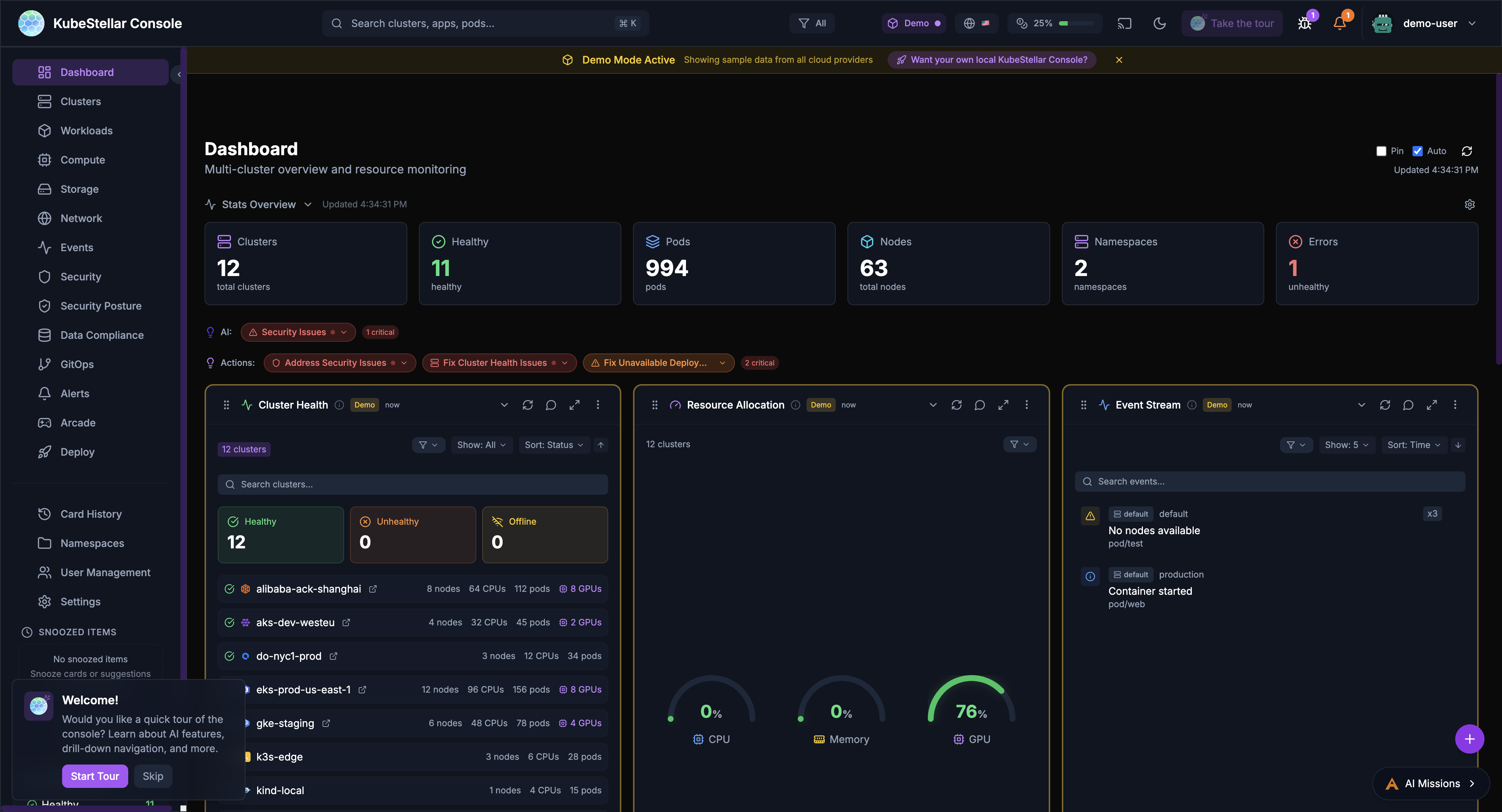
KubeStellar Console is like a smart control room for all your Kubernetes clusters. Think of it as a dashboard that:
- Shows you everything happening across all your clusters in place
- Learns what you care about and shows you that first
- Helps you fix problems using AI (like having a helpful assistant)
- Lets you create your own cards using AI or JSON
- Lets you report bugs and request features that get fixed automatically
Why is it special?
This is of the first projects where AI helps maintain itself. When you report a bug or request a feature:
- You describe what you want
- AI reviews it and creates a fix
- You get a preview to test
- approved, it goes into the next release
It’s a closed-loop system - your feedback directly improves the product!
Quick Numbers
| What | Count |
|---|---|
| Dashboard Pages | 20+ |
| Card Types | 120+ |
| Stats Blocks | 93+ |
Main Features
Dashboards for Everything
20+ dashboards, each focused on a specific area:
- Main Dashboard - Your personalized home view
- Clusters - Health and status of all clusters
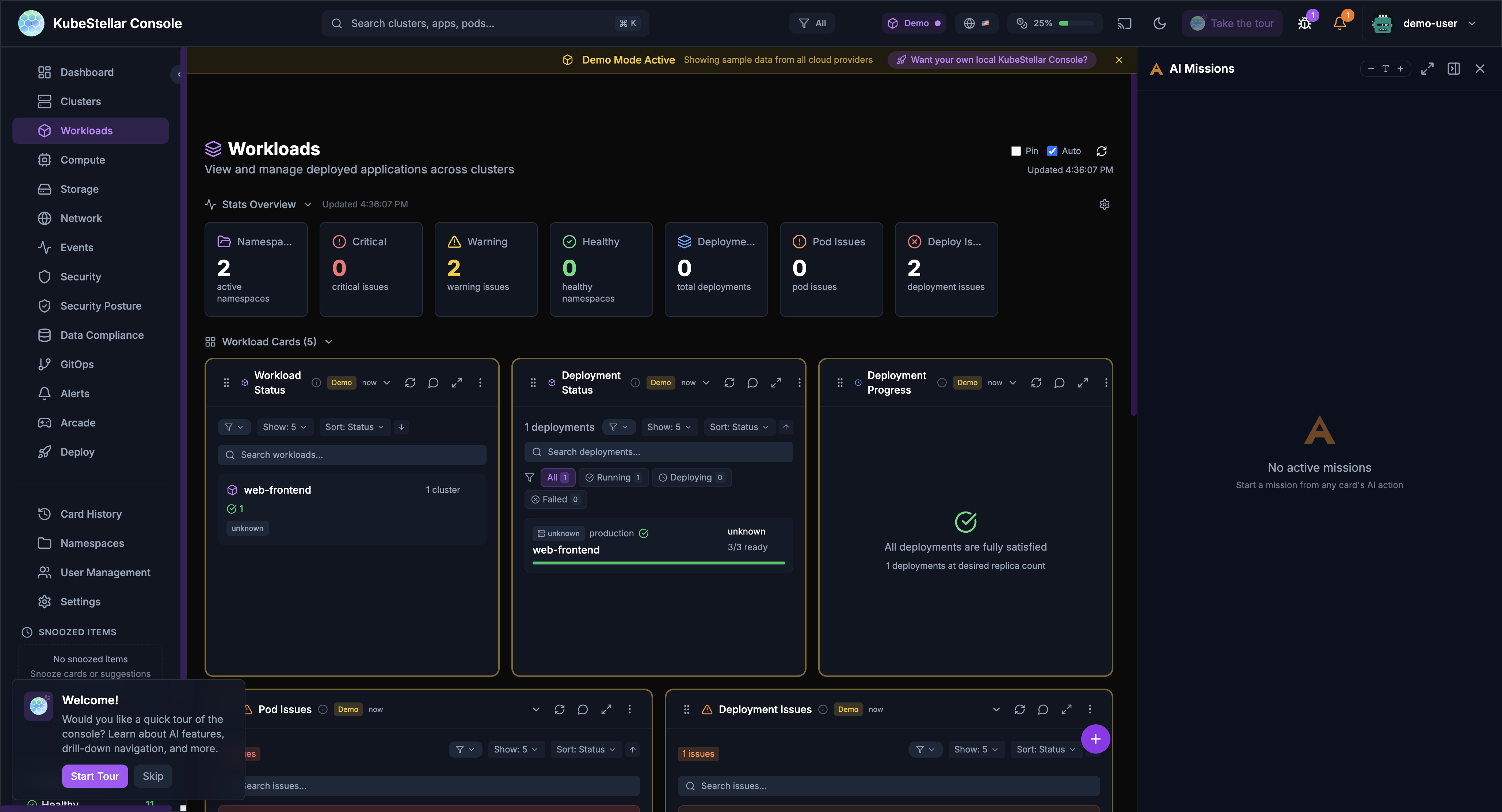
- Workloads - Deployments, pods, services
- Compute - CPUs, memory, GPUs
- Storage - Volumes and storage classes
- Network - Services and ingresses
- Security - Issues and vulnerabilities
- GitOps - Helm releases and Kustomizations
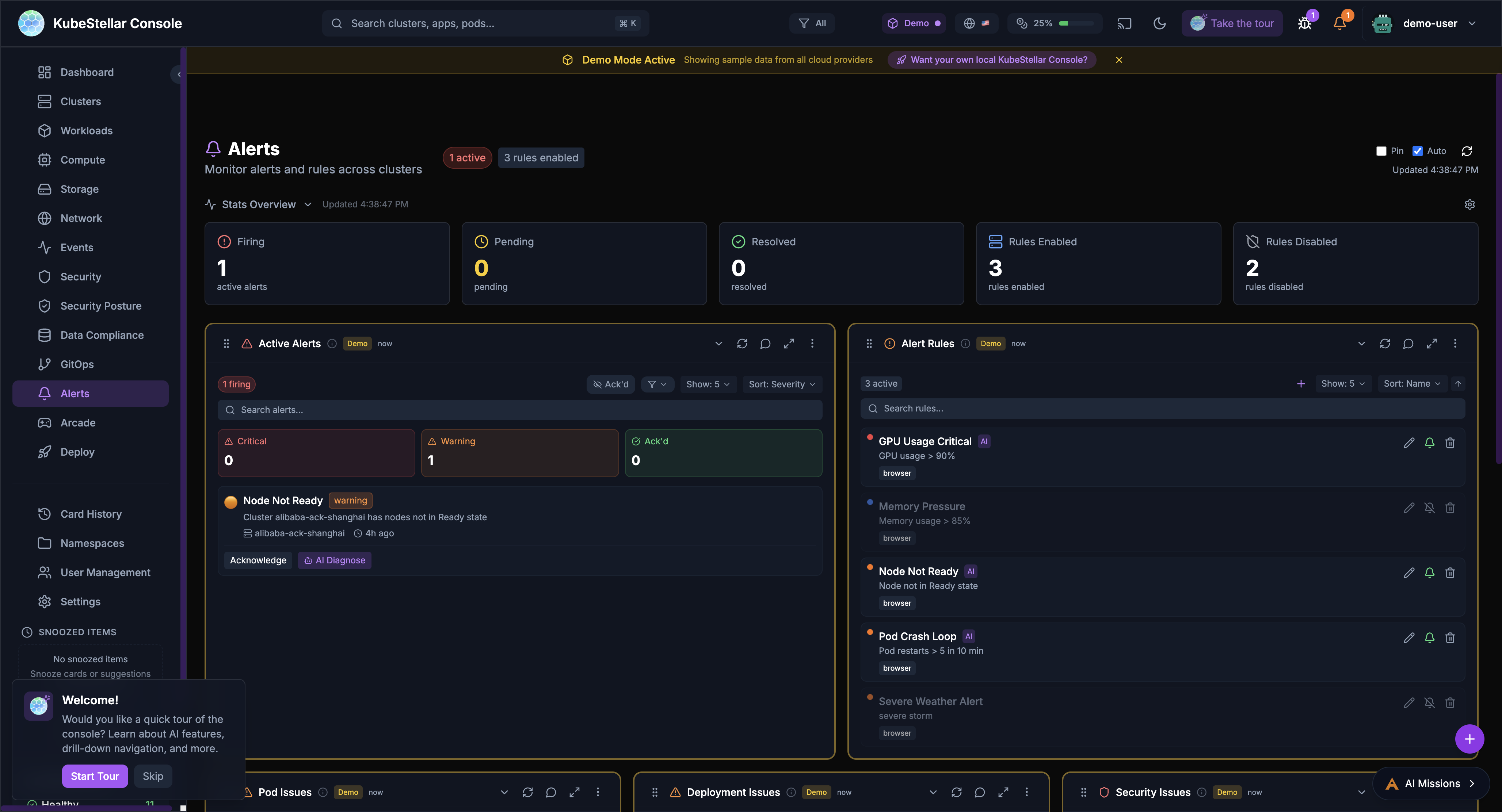
- Alerts - Active alerts and rules
- Cost - Money tracking for your resources
- And more specialized views!
Smart Cards
120+ card types you can add to any dashboard:
- Cluster health checks
- Resource usage gauges
- Event streams
- GPU monitoring
- Cost tracking
- Security and compliance scores
- Workload deep-dives
- Provider health (AI and cloud)
- And many more!
Deploy & Orchestrate
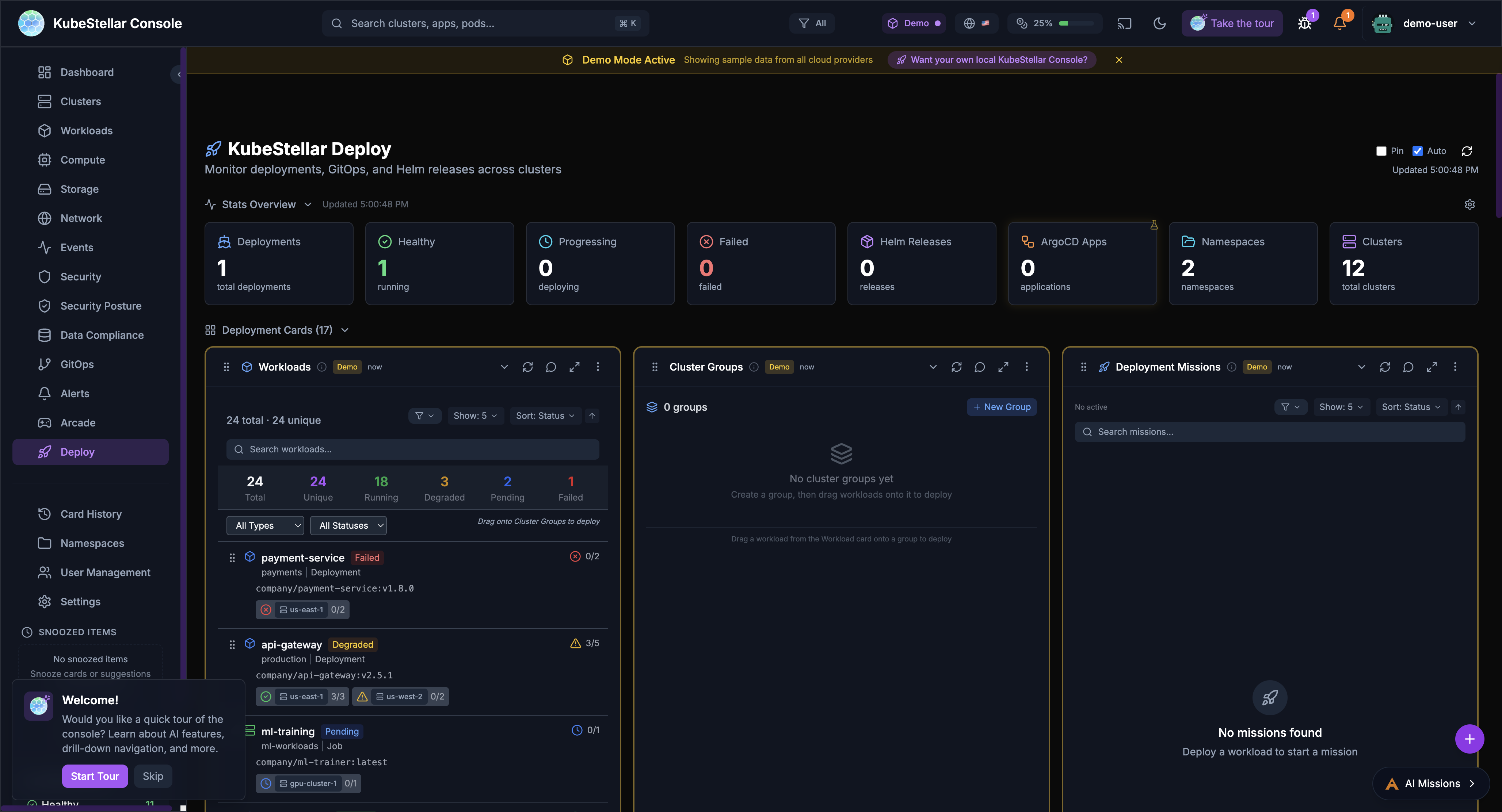
The console is a full deployment control plane. From the Deploy dashboard you can:
- See all workloads across every cluster
- Create cluster groups (like “production” or “us-east”)
- Deploy workloads by dragging them groups
- Let AI plan and execute multi-cluster deployments
- Track deployment missions in real time
Learn about Deploy & Orchestrate
Card Factory - Build Your Own
You can create your own cards in two ways:
- AI-Assisted - Describe what you want in plain English, and AI builds the card for you
- JSON or Code - Write a card definition in JSON or TSX and the Card Factory brings it to life
This means the console grows with your needs. If a card doesn’t exist, just make!
Stats at a Glance
93+ stats blocks that show you important numbers instantly:
- Cluster counts
- Pod status
- Resource usage
- Alert counts
- Cost summaries
- Compliance scores
AI That Helps
- AI Missions - Chat with AI to troubleshoot problems
- Diagnose & Repair - AI finds what’s wrong and suggests fixes
- Smart Suggestions - AI notices what you’re looking at and suggests better cards
- AI Card Creation - Describe a card and AI builds it for you
Report Bugs, Get Fixes
The bug-to-squash workflow:
- Click “Report a bug”
- Describe the problem
- AI creates a fix
- You get a notification when it’s ready
- Test and approve
The same works for feature requests - describe what you want and AI builds it.
Learn about the feedback system
Alerts You Control
- Set up alerts for things you care about
- Choose how you want to be notified (browser, Slack, webhook)
- Let AI diagnose alerts for you
- Track token usage to control costs
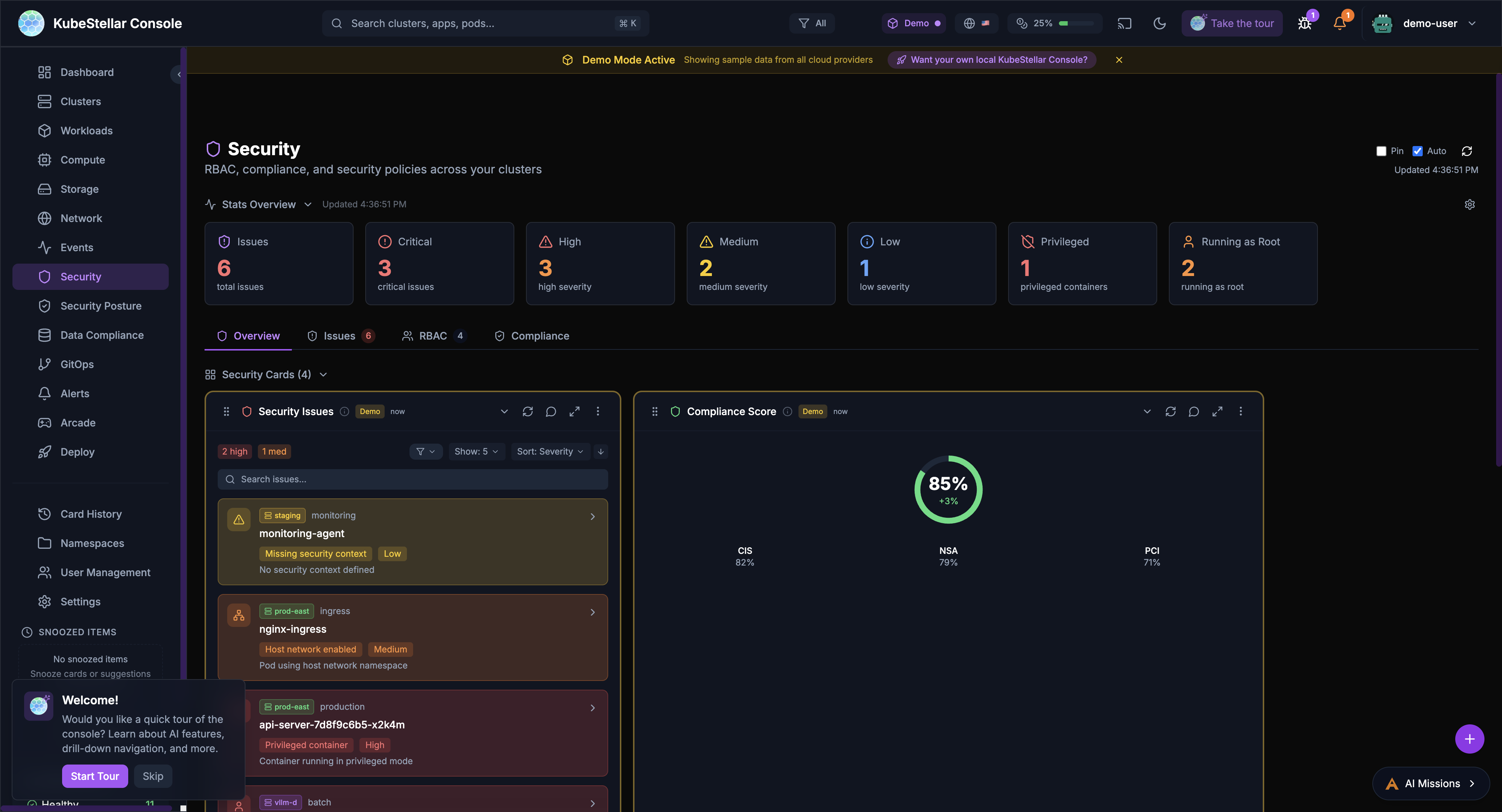
Security and Compliance
- See security issues across all clusters
- Compliance scoring (CIS, NSA, PCI frameworks)
- RBAC analysis
- Privileged container detection
How to Get Started
Try the Live Preview (No Installation)
See it running at console.kubestellar.io - it starts in demo mode with sample data so you can explore everything.
Run Locally
# Clone the repo
git clone https://github.com/kubestellar/console.git
cd console

# Start everything
./start-dev.sh
Open http://localhost:5174 and sign in with GitHub.
Note: You’ll need kubestellar-mcp plugins installed. See Installation for the full setup with all 7 components.
Run in Kubernetes
# Create secrets
# NOTE: Do not put real secrets directly in commands or commit them to git.
# Prefer environment variables or a secrets file (e.g. --from-env-file) that is not version-controlled.
kubectl create namespace ksc
kubectl create secret generic ksc-secrets \
  --namespace ksc \
  --from-literal=github-client-id="$GITHUB_CLIENT_ID" \
  --from-literal=github-client-secret="$GITHUB_CLIENT_SECRET"

# Install with Helm
helm install ksc oci://ghcr.io/kubestellar/charts/kubestellar-console \
  --namespace ksc \
--set github.existingSecret=ksc-secretsIt’s Safe
- You control your data - The console uses an agent to proxy your kubeconfig, so you see what you have access to
- Works for teams - Multiple people can use the same console without seeing each other’s stuff
- No interference - Your dashboards, cards, and settings are personal to you
- Shared SaaS, personal experience - Everyone gets their own view on the same website
Quick Links
- Quick Start - Get running fast
- Installation - All deployment options
- Deploy & Orchestrate - Multi-cluster deployment control plane
- Dashboards - All dashboards
- Cards - All 110+ cards
- Stats Blocks - All 93+ stats
- AI Features - AI Missions, diagnose, repair, card creation
- Agentic Quality Controls - How the project catches AI mistakes and reviews AI-authored fixes
- Marketplace - Community dashboards, cards, and themes for multi-cluster Kubernetes
- Knowledge Base - 400+ AI Mission prompts for CNCF project installation and repair
- Feedback System - Bug-to-squash workflow
- Alerts - Notifications and token usage
- Architecture - How it works
- Configuration - Settings and options
Source Code
- Repository: kubestellar/console
- Container Image:
ghcr.io/kubestellar/console